Linux Local Password Attacks
Credentials Harvesting
We can hunt for credentials in following places:
- Files: Stored sensitive information.
- History: Command-line or browser history may contain credentials.
- Memory: In-memory processes can reveal secrets.
- Key-Rings: Credential storage systems like Gnome Keyring.
- Configs: Misconfigured files with hardcoded credentials.
- Logs: Logs may capture sensitive data.
- Cache: Cached credentials or session data.
- Browser Stored Credentials: Saved logins in web browsers.
- Databases: Direct database access or exposed credentials.
- Command-line History: Credentials stored in
.bash_history. - In-Memory Processing: Runtime processing credentials.
- Notes: Plain text credential notes.
- Scripts: Scripts with hardcoded credentials or API keys.
- Source Code: Embedded credentials in source code repositories.
- Cronjobs: Jobs running with elevated permissions.
- SSH Keys: Accessible private keys for secure shell access.
Find Credentials
Config
for ext in .conf .config .cnf; do echo -e "\nFiles for: $ext:\n----------------------------------------"; find / -type f -name "*$ext" 2>/dev/null | grep -Ev "/(lib|fonts|share|core)/"; done # listing all config files
find / -type f -name "*.cnf" 2>/dev/null | xargs grep -iE "password|user" 2>/dev/null # .cnf file hunting with mentioned words
for ext in .sql .db .*db .db*; do echo -e "\nDB File extension: $ext\n----------------------------------------"; find / -type f -name "*$ext" 2>/dev/null | grep -Ev "/(doc|lib|headers|share|man)/"; done
grep -riE "password|passwd|user|username" /etc 2>/dev/null # scan config files
find /home/* -type f -name "*.txt" -o ! -name "*.*" # find notes
Scan Common Directories:
find /home /opt /var -type f \( -name "*.log" -o -name "*.txt" -o -name "*.config" \) 2>/dev/null | xargs grep -iE "pwd|pass|passwd|password|user|username" 2>/dev/null
Browsers:
# Firefox Stored Credentials
ls -l .mozilla/firefox/ | grep default
cat .mozilla/firefox/1bplpd86.default-release/logins.json | jq .
Scripts
for ext in .py .pyc .pl .go .jar .c .sh; do echo -e "\nFile extension: $ext\n----------------------------------------"; find / -type f -name "*$ext" 2>/dev/null | grep -Ev "/(doc|lib|headers|share)/"; done
Logs
echo "/var/log/messages - Generic system activity logs"; cat /var/log/messages
echo "/var/log/syslog - Generic system activity logs"; cat /var/log/syslog
echo "/var/log/auth.log - (Debian) All authentication related logs"; cat /var/log/auth.log
echo "/var/log/secure - (RedHat/CentOS) All authentication related logs"; cat /var/log/secure
echo "/var/log/boot.log - Booting information"; cat /var/log/boot.log
echo "/var/log/dmesg - Hardware and drivers related information and logs"; cat /var/log/dmesg
echo "/var/log/kern.log - Kernel related warnings, errors and logs"; cat /var/log/kern.log
echo "/var/log/faillog - Failed login attempts"; cat /var/log/faillog
echo "/var/log/cron - Information related to cron jobs"; cat /var/log/cron
echo "/var/log/mail.log - All mail server related logs"; cat /var/log/mail.log
echo "/var/log/httpd - All Apache related logs"; cat /var/log/httpd
echo "/var/log/mysqld.log - MySQL related logs"; cat /var/log/mysqld.log
for log in /var/log/*; do grep -H "accepted|session opened|session closed|failure|failed|ssh|password changed|new user|delete user|sudo|COMMAND=|logs" $log 2>/dev/null && echo -e "\n#### Log file: $log" && grep "accepted|session opened|session closed|failure|failed|ssh|password changed|new user|delete user|sudo|COMMAND=|logs" $log 2>/dev/null; done
Crontabs
cat /etc/crontab
crontab -l | grep -iE "password|user"
ls -la /etc/cron.*/
Bash History
cat ~/.bash_history | grep -iE "password|user"
cat /home/*/.bash_history
Keys
grep -rnw "PRIVATE KEY" /home/* 2>/dev/null | grep ":1"
grep -rnw "ssh-rsa" /home/* 2>/dev/null | grep ":1"
Memory and Cache
Many applications store credentials in memory or files for reuse, and tools like mimipenguin (requiring root access) can help retrieve them from Linux systems.
sudo python3 mimipenguin.py
sudo bash mimipenguin.sh
LaZagne
The LaZagne project is an open-source tool that retrieves passwords stored on a local computer by using various methods (plaintext, APIs, custom algorithms, databases, etc.) for commonly-used software.
Link: https://github.com/AlessandroZ/LaZagne
sudo python3 lazagne.py all # sudo is needed because of 'all' mode
python3 lazagne.py browsers
Passwd, Shadow & Opasswd
Linux-based systems commonly use Pluggable Authentication Modules (PAM) for authentication. The pam_unix.so module is a standard PAM component that manages user authentication and updates account information. It works with two key files:
/etc/passwd: Stores user account information, including usernames and UIDs./etc/shadow: Contains encrypted passwords and password-related metadata, accessible only by privileged users for enhanced security.
PAM also supports other authentication mechanisms like LDAP, Kerberos, and more for flexible integration.
Passwd
The /etc/passwd file stores essential information about system users and is readable by all users and services. Each line represents a user and includes seven fields separated by colons (:):
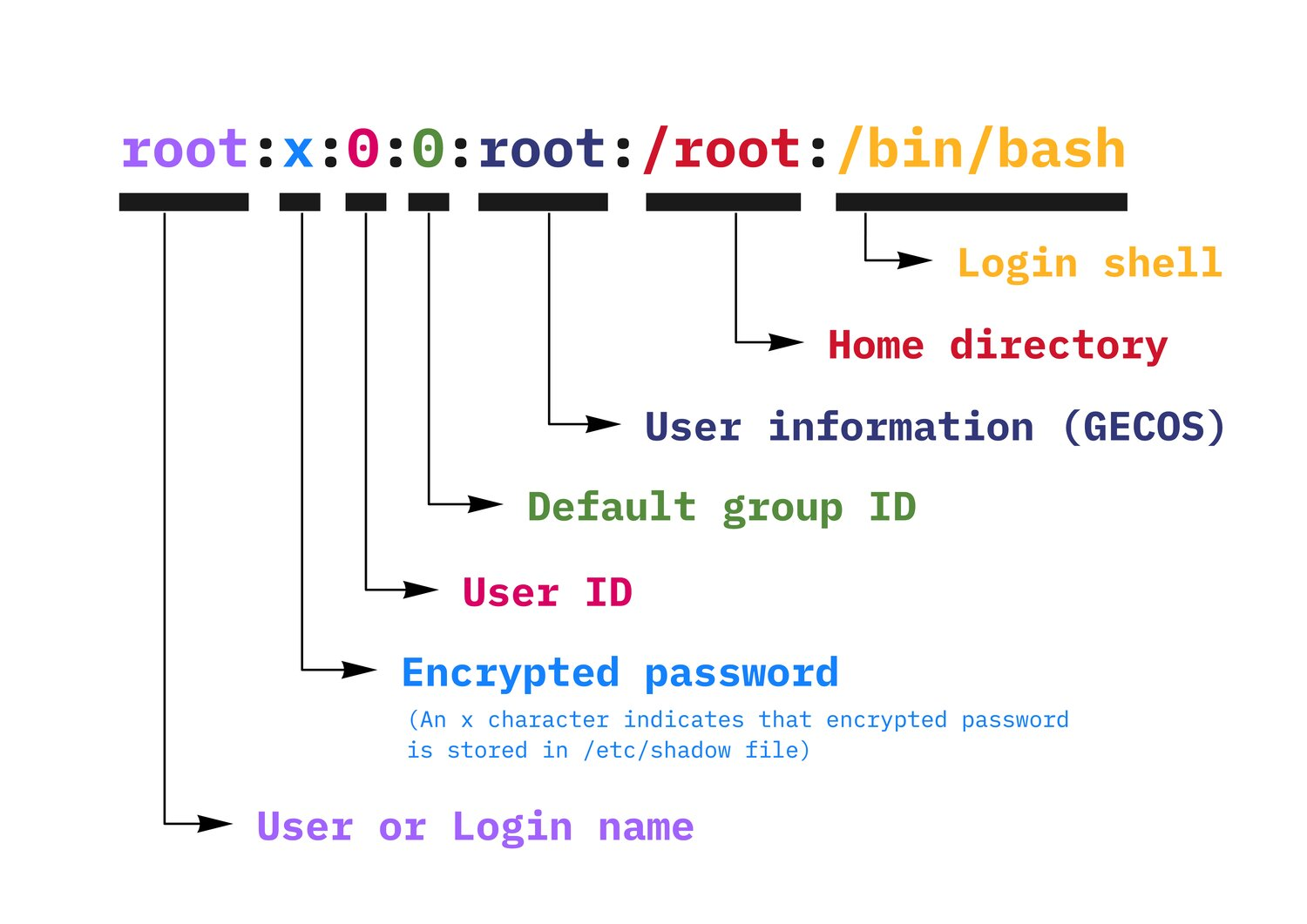
username : password-info : UID : GID : full-name/comments : home-directory : shell
Modern systems store encrypted passwords in /etc/shadow to limit access. If passwords are stored directly in /etc/passwd, attackers could exploit this, especially if the file is writable, which could allow privilege escalation.
Shadow
The /etc/shadow file stores encrypted passwords and related metadata for system users. It enhances security by restricting access to password data; only administrators can read it. If a user listed in /etc/passwd has no corresponding entry in /etc/shadow, that user is invalid.
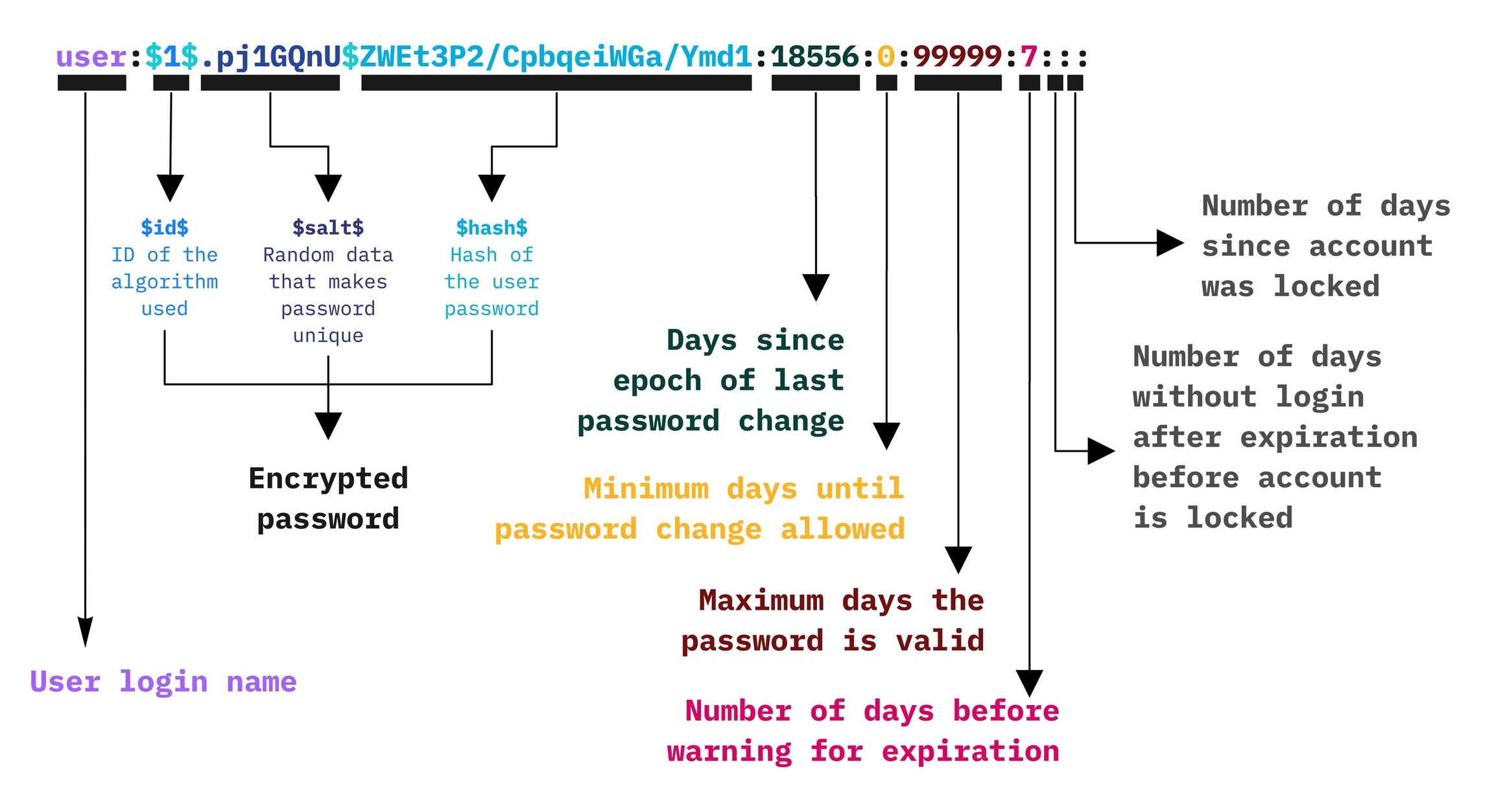
username : encrypted-password : last-pw-change : min-pw-age : max-pw-age : warning-period : inactivity-period : expiration-date : reserved
*or!: Disables login with Unix password but allows other methods (e.g., Kerberos).- Empty: No password required for login.
Password Encryption Format:
$<type>$<salt>$<hashed-password>
Algorithm Types:
$1$– MD5$2a$– Blowfish$2y$– Eksblowfish$5$– SHA-256$6$– SHA-512 (default in modern distributions)
By default, Linux uses SHA-512 encryption for passwords. Older systems may use weaker algorithms, which are easier to crack.
Opasswd
The /etc/security/opasswd file stores old password hashes to prevent users from reusing previous passwords. It is used by the pam_unix.so module as part of the password management policy. Only administrators can access this file unless permissions are altered.
Older hashes in this file may use weaker algorithms like MD5 ($1$), making them easier to crack. Recognizing patterns in old passwords can help attackers guess new ones, emphasizing the need for strong, unique passwords and secure hashing methods like SHA-512.
Cracking Linux Credentials
Unshadow
sudo cp /etc/passwd /tmp/passwd.txt
sudo cp /etc/shadow /tmp/shadow.txt
unshadow /tmp/passwd.txt /tmp/shadow.txt > /tmp/hash.txt
Hashcat
hashcat -m 1800 -a 0 /tmp/hash.txt wordlist.txt -o output.txt
More about Cracking Hash is available at following page: